ComfyUI: Your First AI Image Generation Workflow

ComfyUI is a powerful and flexible node-based user interface for AI image generation. Unlike traditional interfaces, ComfyUI adopts a node and connection based approach, offering granular control over every step of the generation process. In this article, we’ll discover together the basic workflow to generate your first image with ComfyUI.
🎯 Prerequisites
Before diving into ComfyUI, make sure you have:
- Windows 10/11, macOS, or Linux
- At least 8 GB of RAM (16 GB recommended)
- An NVIDIA graphics card with at least 4 GB of VRAM (or CPU/MPS for Mac if no NVIDIA GPU available)
- 20 GB of free disk space for the application and models
- An Internet connection for the initial download
🔧 Installing ComfyUI
ComfyUI now offers a managed application that significantly simplifies installation. No need to manage Python, Git, or dependencies manually anymore!
Simplified Installation (Recommended)
Step 1: Download the Application
Go to https://www.comfy.org/download and download the version corresponding to your operating system:
- Windows: Download the
.exeinstaller - macOS: Download the
.dmgfile - Linux: Download the AppImage or
.deb/.rpmpackage
Step 2: Install the Application
On Windows:
- Launch the downloaded
.exefile - Follow the installation wizard instructions
- The application will launch automatically once installed
On macOS:
- Open the
.dmgfile - Drag the ComfyUI icon into the Applications folder
- Launch ComfyUI from your Applications (you may need to authorize the app in System Preferences > Security)
On Linux:
- Make the AppImage executable:
chmod +x ComfyUI-*.AppImage - Launch the application:
./ComfyUI-*.AppImage
Step 3: First Launch
On first launch, the ComfyUI application will:
- Automatically configure the necessary Python environment
- Download required dependencies
- Create folders for your models and generated images
Be patient for a few minutes during this first initialization. Once complete, the ComfyUI interface will automatically open in your installed application!
Step 4: Download Your First Model
The application includes an integrated model manager. To download your first model:
- In the ComfyUI interface, click on “Manager” (button at the bottom right)
- Select “Model Manager”
- Filter by
type : Checkpoint - Search for “checkpoints/SD1.X or SD2.X” or “checkpoints/SDXL” in “Save Path”
- Click “Download” next to the desired model
- Wait for the download to complete
You’re now ready to generate your first images!
Advanced Installation (For Developers)
If you prefer to have full control or contribute to the project, you can still install ComfyUI manually:
# Clone the repository
git clone https://github.com/comfyanonymous/ComfyUI.git
cd ComfyUI

# Install dependencies
pip install -r requirements.txt

# Launch ComfyUI
python main.py
This method requires having Python 3.10+ and Git installed on your machine.
🧩 Understanding the Node Interface
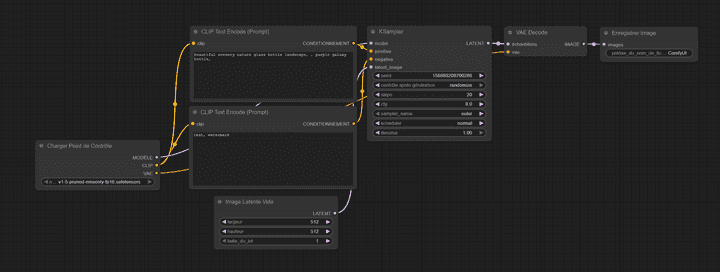
ComfyUI works with a system of interconnected nodes. Each node represents a step or operation in the image generation process. The connections between nodes define the data flow.
Key Elements
- Nodes: Boxes representing operations (model loading, text encoding, generation, etc.)
- Connections: Colored lines that transmit data between nodes
- Inputs/Outputs: Connection points on each node
🎨 The Basic Workflow: Anatomy of Image Generation
Let’s break down the basic workflow visible in the provided image. This workflow illustrates the complete image generation process, from text input to the final image.
1️⃣ Load Checkpoint
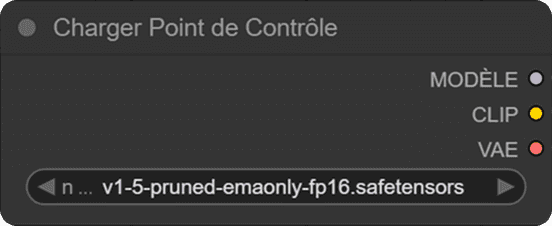
The “Load Checkpoint” node is the starting point. It loads the stable diffusion model you want to use.
Parameters:
- ckpt_name: The model name (e.g., "v1-5-pruned-emaonly-fp16.safetensors")
This node produces three essential outputs:
- MODEL: The main diffusion model
- CLIP: The text encoding model
- VAE: The image decoder (Variational AutoEncoder)
2️⃣ CLIP Text Encode (Text Encoding)
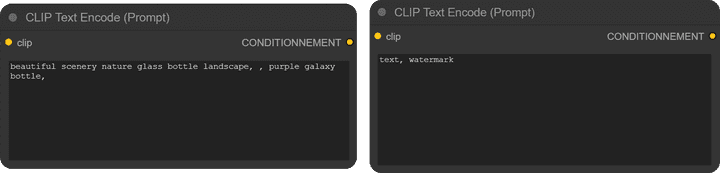
You’ll notice two CLIP Text Encode nodes in the workflow:
Positive Prompt (CONDITIONING)
clip: "beautiful scenery nature glass bottle landscape, , purple galaxy bottle,"This node encodes your positive prompt - the description of what you want to generate. The text is transformed into a numerical vector that the model can understand.
Negative Prompt (CONDITIONING)
clip: "text, watermark"This node encodes your negative prompt - what you DON’T want to see in the generated image. It helps avoid unwanted elements.
What is CLIP?
CLIP (Contrastive Language-Image Pre-training) is a model that understands the relationship between text and images. It transforms your textual descriptions into mathematical representations that the diffusion model can use to guide generation.
3️⃣ Empty Latent Image
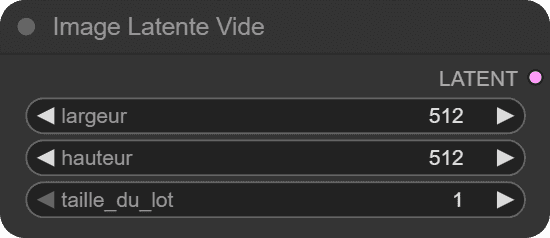
This node creates a starting latent space for generation.
Parameters:
- width: 512 pixels
- height: 512 pixels
- batch_size: 1 (number of images to generate simultaneously)
What is Latent Space?
Latent space is a compressed representation of the image. Instead of working directly with pixels (512×512×3 = 786,432 values), the model works in a reduced space (typically 64×64×4 = 16,384 values). This is much more efficient!
Think of latent space as a “draft” of the image in a format the model understands. It’s like working on a sketch before creating the final painting.
4️⃣ KSampler: The Heart of Generation
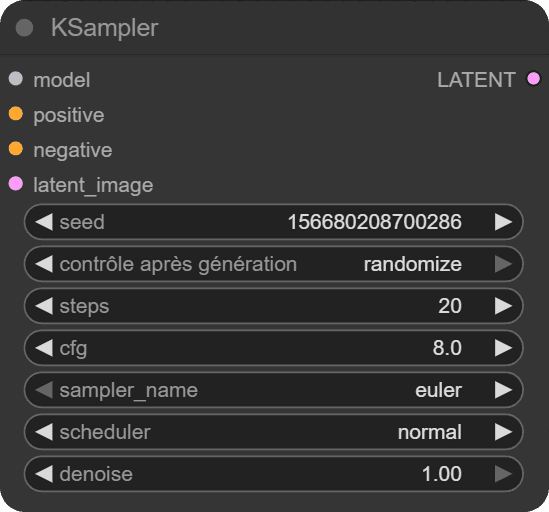
The KSampler is the node that actually performs the image generation. This is where the magic happens!
The KSampler implements the diffusion process, which is essentially a controlled denoising operation. Starting from pure noise (or a noisy latent image), it progressively refines the image step by step, guided by your text prompts, until it reaches a coherent final image.
🌱 Seed (Random Seed)
Value: 1066802087602986The seed is a number that initializes the random number generator used throughout the generation process. It’s the foundation of reproducibility in AI image generation.
How it works:
- Using the same seed with identical parameters will produce exactly the same image every time
- Changing the seed produces a completely different random result
- Seeds are typically large numbers (like the one shown) to ensure a wide variety of possible outcomes
Why is it important?
- Reproducibility: You can recreate an image you liked by noting its seed
- Iteration: You can refine your prompt while keeping the same composition by maintaining the seed
- Debugging: Helps identify whether changes in output are due to parameter tweaks or random variation
Practical tip: When you find a composition you like but want to refine details (colors, style, specific elements), keep the seed fixed and adjust your prompt or other parameters.
🔄 Control after generate
Options: fixed, randomize, incrementThis parameter determines how the seed changes between consecutive generations:
- fixed: Keeps the same seed for every generation
- Use when you want to test different prompts on the same composition
- Perfect for A/B testing parameters
- randomize: Generates a new random seed each time
- Use for exploring diverse results
- Best when you’re looking for inspiration or variety
- increment: Adds 1 to the seed for each generation
- Use for creating variations that are similar but slightly different
- Useful for batch generation with controlled variation
- Creates a “sequential exploration” of the possibility space
Example workflow: Start with “randomize” to explore, switch to “fixed” when you find something interesting, then use “increment” to generate a series of similar variations.
🪜 Steps (Denoising Steps)
Value: 20Steps represent the number of iterations the diffusion model performs to transform noise into a coherent image. Each step refines the image progressively.
How the process works:
The diffusion model works backwards from noise:
- Step 1: Pure noise (completely random pixels)
- Steps 2-10: Rough shapes and composition emerge
- Steps 11-15: Details start forming, colors solidify
- Steps 16-20: Fine details, textures, and refinement
Choosing the right number of steps:
- 10-15 steps: Very fast, rough results
- Good for quick previews
- Compositions are recognizable but lack detail
- 20-30 steps: Balanced quality/speed (recommended for most use cases)
- Good detail and coherence
- Sweet spot for everyday generation
- 30-50 steps: High quality
- Better fine details and consistency
- Diminishing returns start appearing
- 50+ steps: Marginal improvements
- Takes significantly longer
- Usually unnecessary unless using specific samplers
- Can sometimes lead to over-processed images
Important note: More steps ≠ always better. Beyond a certain point (usually 30-40), additional steps provide minimal improvement while significantly increasing generation time. The optimal number also depends on your sampler and scheduler.
Generation time: Each step adds to processing time. On a mid-range GPU, expect roughly:
- 20 steps: 3-5 seconds
- 30 steps: 5-8 seconds
- 50 steps: 8-13 seconds
🎚️ CFG (Classifier Free Guidance Scale)
Value: 8.0CFG is arguably the most impactful parameter in controlling your generation. It determines how strongly the model follows your text prompt versus allowing creative freedom.
Understanding CFG Scale:
CFG works by comparing two generations:
- One guided by your prompt (conditional generation)
- One without your prompt (unconditional generation)
The CFG value controls how much the model amplifies the difference between these two, essentially controlling “prompt adherence strength.”
CFG Scale Guide:
-
1.0-3.0: Minimal guidance
- Model largely ignores your prompt
- Results are often incoherent or unrelated to the prompt
- Rarely useful except for experimental purposes
-
4.0-6.0: Low guidance
- Creative, artistic interpretations
- Loose adherence to prompt
- Colors and compositions may be unexpected
- Good for abstract or artistic styles
- Risk of missing key elements from your prompt
-
7.0-9.0: Balanced guidance (RECOMMENDED)
- 7.0: Slightly more creative, natural looking
- 8.0: Excellent balance (default for most models)
- 9.0: Slightly more literal, detailed
- Best range for most realistic images
- Good prompt following with natural results
-
10.0-15.0: High guidance
- Very literal interpretation of prompts
- All prompt elements strongly emphasized
- Colors become more saturated
- Risk of over-processed appearance
- Useful when you need specific elements guaranteed
-
15.0+: Extreme guidance
- Over-saturated colors
- Artificial, “plastic” appearance
- Details become exaggerated
- Often produces worse results despite stronger prompt adherence
- Generally not recommended
Practical Examples:
For the prompt “a red apple on a wooden table”:
- CFG 5.0: Might show an apple-like object with reddish tones, artistic interpretation of a table
- CFG 8.0: Clear red apple, realistic wooden table, natural lighting
- CFG 12.0: Intensely red apple, heavily textured wood, possibly over-detailed
- CFG 20.0: Unnaturally vibrant red, over-sharpened details, artificial look
Pro Tips:
- Start at 7-8 and adjust based on results
- Lower CFG for portraits and natural scenes (6.5-7.5)
- Higher CFG for specific objects or when elements are missing (9-11)
- SDXL models often work better with slightly lower CFG (6-8)
- If your image looks “deep fried” or over-processed, reduce CFG
🔧 Sampler
Value: eulerThe sampler is the algorithm that determines how the model traverses from noise to final image. Different samplers take different “paths” through the denoising process, affecting quality, speed, and style.
Popular Samplers Explained:
Euler Family:
- euler: Simple, fast, and reliable
- Best for beginners
- Works well at low step counts (15-25)
- Slightly less detailed than others
- Very consistent results
- euler_ancestral (euler_a): Adds controlled randomness
- More creative and varied
- Each generation is unique even with same seed
- Good for artistic or stylized content
- Less predictable than euler
DPM (Diffusion Probabilistic Models) Family:
-
dpm_2, dpm_2_ancestral: Second-order solvers
- More accurate than Euler
- Slightly slower but better quality
- Good for detailed images
-
dpm++_2m, dpm++_2m_karras: Advanced versions
- Excellent quality-to-speed ratio
- Very popular in the community
- Karras variants use a specialized noise schedule
- Recommended for production work
-
dpm_fast, dpm_adaptive: Specialized samplers
- Fast: Optimized for speed, needs fewer steps
- Adaptive: Automatically adjusts steps (advanced)
DDIM (Denoising Diffusion Implicit Models):
- Deterministic (no randomness)
- Good for img2img workflows
- Consistent results
- Generally requires more steps (30-50)
UniPC:
- Unified Predictor-Corrector
- Excellent quality at low step counts (10-20)
- Fast and efficient
- Great for quick generations
LMS (Linear Multi-Step):
- Older method, less commonly used
- Smooth results
- Works well with Karras scheduler
Practical Recommendations:
For beginners:
- euler (20-25 steps): Simple and reliable
- dpm++_2m_karras (20-30 steps): Best quality/speed balance
For speed:
- dpm_fast (10-15 steps)
- unipc (12-20 steps)
For quality:
- dpm++_2m_karras (25-35 steps)
- dpm++_sde_karras (25-40 steps)
For artistic variation:
- euler_ancestral (20-30 steps)
- dpm_2_ancestral (25-35 steps)
Important: The “ancestral” samplers (ending in “_a” or “_ancestral”) inject randomness at each step, making them non-deterministic even with a fixed seed. Use these when you want variety, avoid them when you need reproducibility.
⏱️ Scheduler
Value: normalThe scheduler determines when and how much noise is removed at each step. It creates the “schedule” of noise levels throughout the denoising process.
Understanding Schedulers:
Think of denoising like sculpting: you can remove material evenly throughout the process, or spend more time on rough shaping early and fine details later. The scheduler controls this timing.
Available Schedulers:
-
normal (linear): Default, evenly distributed denoising
- Simple and predictable
- Removes noise at a constant rate
- Good baseline for most purposes
- Works well with most samplers
-
karras: Special noise schedule developed by Tero Karras
- Spends more time on fine details
- Generally produces higher quality results
- More refined textures and details
- Slightly longer generation time
- Highly recommended for quality work
- Often the preferred choice in the community
-
exponential: Faster early denoising, slower later
- Quick rough shapes, then gradual refinement
- Can be more efficient
- Less commonly used
-
sgm_uniform: Used by Stability AI’s models
- Specialized for SDXL and similar models
- Uniform noise distribution
- Good for specific model architectures
-
simple: Simplified schedule
- Minimal complexity
- Very fast
- May sacrifice some quality
-
ddim_uniform: Designed for DDIM sampler
- Pairs best with DDIM sampler
- Uniform step distribution
Scheduler + Sampler Combinations:
Popular winning combinations:
- euler + normal: Classic, reliable
- dpm++_2m + karras: Excellent quality (most popular)
- euler_ancestral + normal: Creative variety
- ddim + ddim_uniform: Consistent results
- unipc + karras: Fast with good quality
Practical Impact:
For the same image with different schedulers:
- normal: Balanced detail throughout
- karras: Sharper details, better textures, more refined
- exponential: Sometimes faster convergence, similar to normal
Recommendation: Start with karras scheduler when using DPM samplers, or normal with Euler samplers. The quality difference is subtle but noticeable, especially in textures and fine details.
🎭 Denoise
Value: 1.00Denoise controls the intensity of the denoising process, or how much the model transforms the input latent image.
Understanding Denoise:
-
1.00 (100%): Complete denoising from pure noise
- Standard for text-to-image generation
- Starts from random noise and creates a completely new image
- Ignores any input image completely
-
0.75-0.99: High denoising
- Strong transformation
- Keeps general composition but changes most details
- Useful for significant variations
-
0.50-0.75: Moderate denoising
- Balanced transformation
- Maintains composition and major elements
- Changes style, colors, details
- Sweet spot for img2img
-
0.25-0.50: Light denoising
- Subtle modifications
- Keeps most of the original image
- Refines details, fixes small issues
- Good for upscaling workflows
-
0.01-0.25: Minimal denoising
- Very light touch-ups
- Almost identical to input
- Useful for subtle refinements
When to Adjust Denoise:
In the basic text-to-image workflow (like shown in your image):
- Always keep at 1.00
- Lower values have no effect since you’re starting with empty latent
In img2img workflows (when you have an input image):
- 0.5-0.7: Reimagine the image with same composition
- 0.3-0.5: Keep image similar, change style
- 0.7-0.9: Strong changes, loose reference
Practical Example:
Input: Photo of a cat
- Denoise 0.3: Same cat, slightly different lighting/details
- Denoise 0.5: Same pose, different cat breed/colors
- Denoise 0.7: Cat in similar position, different scene
- Denoise 1.0: Completely new image, may not even contain a cat
Note: In your basic workflow with “Empty Latent Image”, denoise at 1.00 is correct and shouldn’t be changed. This parameter becomes crucial when working with ControlNet, img2img, or inpainting workflows.
5️⃣ VAE Decode (Decoding)
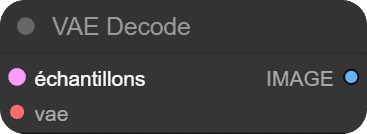
The VAE Decode transforms the final latent representation into a real, viewable image.
Inputs:
- samples: The latent image generated by KSampler
- vae: The VAE decoder from the checkpoint
What is the VAE?
The VAE (Variational AutoEncoder) is a neural network that does two things:
- Encode: Compress an image into latent space (not used in this workflow)
- Decode: Decompress latent space into the final image
It’s like a translator that converts the model’s “language” into pixels we can see!
6️⃣ Save Image
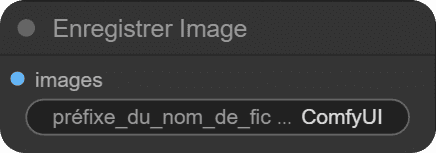
The last node simply saves the generated image to your disk.
Parameters:
- filename_prefix: Filename prefix (e.g., "ComfyUI")
- images: The decoded image to save
Images are saved in the output/ folder of ComfyUI.
🔗 Complete Data Flow
Here’s how data flows through the workflow:
1. Load Checkpoint → Loads model, CLIP, and VAE
                ↓
2. CLIP Text Encode → Encodes positive and negative prompts
                ↓
3. Empty Latent Image → Creates starting space
                ↓
4. KSampler → Generates image in latent space
   (uses MODEL, CONDITIONING+, CONDITIONING-, LATENT)
                ↓
5. VAE Decode → Converts latent to real image
                ↓
6. Save Image → Saves the result
🎯 Your First Generation
Now that you understand each component, let’s generate your first image!
Practical Steps
-
Load the basic workflow in ComfyUI (it’s usually already present by default)
-
Modify the positive prompt with your own description:
"a majestic dragon flying over a medieval castle at sunset" -
Adjust the negative prompt if necessary:
"blurry, low quality, distorted" -
Configure KSampler parameters:
- steps: 20 (good start)
- cfg: 7-8 (creativity/precision balance)
- sampler: euler (simple and effective)
- scheduler: normal
- denoise: 1.00
-
Click “Queue Prompt” to start generation
-
Wait a few seconds and admire your creation in the preview node!
💡 Tips for Beginners
- Start simple: Don’t try to create complex workflows immediately
- Experiment with seeds: Try different seeds to see variations
- Play with CFG: It’s the parameter with the most impact on style
- Gradually increase steps: Start at 20, then test 30, 40, etc.
- Study prompts: Observe how different prompts affect results
- Try different samplers: Compare euler, dpm++_2m_karras, and euler_ancestral
- Use karras scheduler: Often produces better quality than normal
- Keep notes: Write down settings when you get good results
✅ Conclusion
You’ve just discovered the fundamentals of ComfyUI and its image generation workflow! We explored:
- Simplified installation through the managed application
- Node architecture and its advantages
- The role of each node in the generation process
- Key concepts: latent space, CLIP, VAE, and sampling
- All KSampler parameters in detail and their impact on generation
ComfyUI may seem complex at first, but this modular approach offers incredible flexibility. Once you master the basic workflow, you can easily add nodes for composition control (ControlNet), quality enhancement (upscaling), or even animation!
In future articles, we’ll explore more advanced workflows and techniques to create even more impressive images.
Happy creating! 🎨